
Write your block year down once
Settings → Rotation schedule takes thirteen blocks, each a label, dates and optionally a hospital. Saving one proposes the next, and a coverage bar shows any gap. A new case then opens at the hospital the schedule names for that day. In anesthesiology with Premium, the form also leads with what the rotation asks for. Skipping the schedule costs nothing.
By Christopher Cutler, MD, CA-1, anesthesiology
A block schedule is a quiet-moment job that pays off every day after. Write the year down once and the forward-looking numbers stop guessing.
- 1
Open Settings → Rotation schedule
Thirteen blocks. Each one is a label, a start date, an end date, and — optionally — the hospital you are at. That is the whole model.
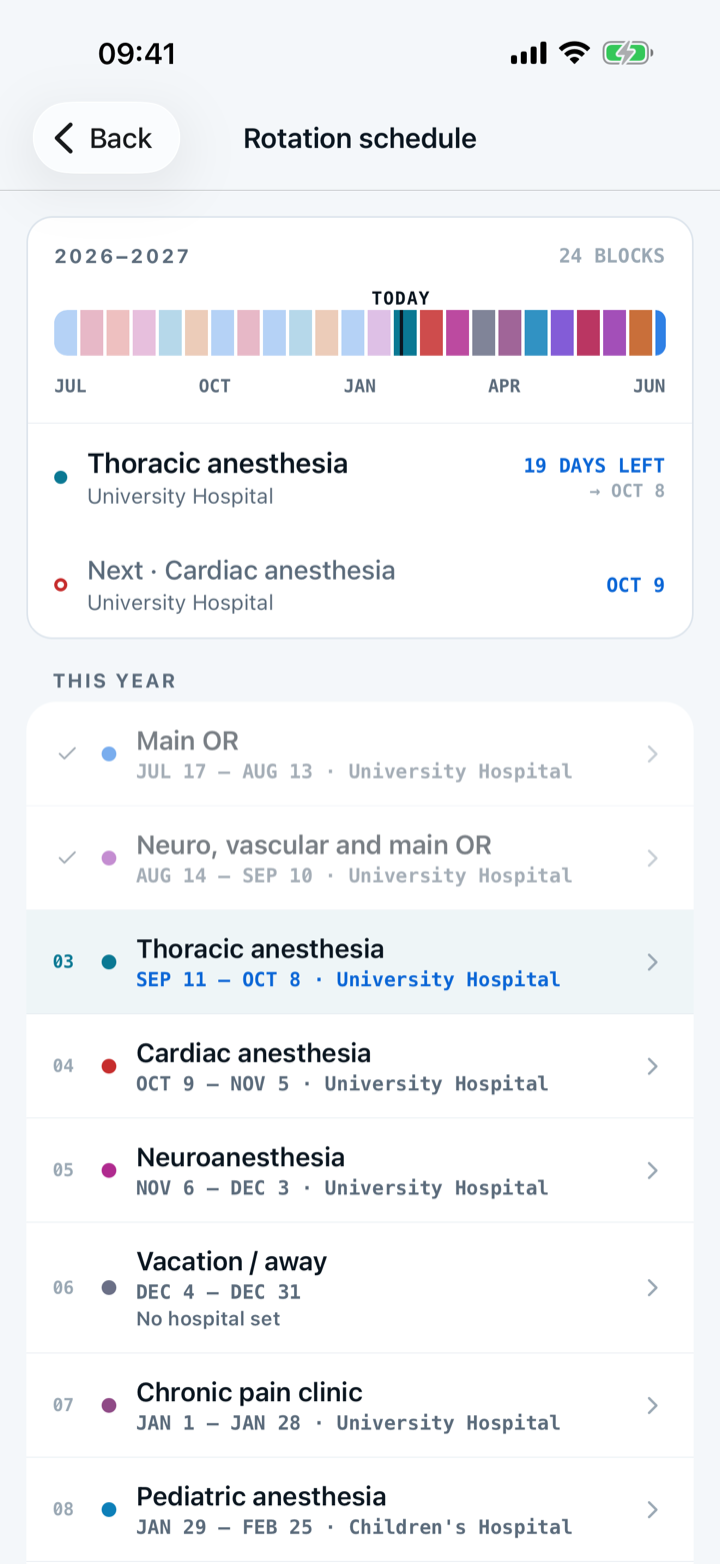
- 2
Save a block and the next one is ready
After you save a block, the editor stays open with the next dates already proposed and the hospital carried forward. That makes a year a run of taps rather than thirteen trips through a form. The proposed dates are printed on the button before you commit to them.
- 3
Check the coverage bar for gaps
A coverage bar across the top draws the whole year. Capnolog warns you when two blocks overlap, and a week that no block covers shows as a hole in the bar.
- 4
What the schedule changes
A new case opens at the hospital the schedule says you were at that day. In anesthesia with Premium, the form leads with what that rotation asks for. On Regional the nerve-block sites come first. On OB the neuraxial sites sit right under the technique. Without Premium, every case opens on the usual form. What is loggable, what is counted, and what is saved never change. The schedule is not written onto the case.
Capnolog never claims to know where you are. The app reads the schedule you wrote, and a case you backdate is matched to that month's blocks, not today's.
- 5
See your block on the Log tab
The Log tab shows a small label naming the block you are in. The pace hints it offers are the ones that block can act on — a nudge you could not act on this week stays quiet instead.
- 6
Log the same nerve block again
After a case with a peripheral nerve block, the save receipt offers “Same block again” beside Undo. The new case copies that case’s answers, hospital, and attending, dated today. The private note is never copied. The age band is copied with a dot beside it until you tap an age to confirm. This button is free.
- 7
Premium: each rotation learns from your cases
In anesthesia, Premium reads the cases you log on each rotation. The answers and attendings you pick there come first. After three cases on a rotation, its usual technique, site, and attending fill in with one tap. Every answer that counts toward your numbers is still yours to tap.
Without Premium, every case opens on the usual form. After the third case on a rotation, a card shows that rotation’s usual case and what Premium would fill in.
- 8
Premium: a summary as each rotation ends
On a rotation’s last two days, the Log tab shows how many cases you logged there and what you logged most. When the schedule names the next rotation, the card says when it starts.
- 9
Premium: a reminder time for each rotation
Settings → Reminders adds a “By rotation” list. Each time starts at the hour you usually log on that rotation, once five cases are logged there. Tap a time to change it. Days with no rotation keep your usual reminder time.
- 10
Skip the schedule if you want
The app never interrupts you to ask for it, and it fires nothing when you are not looking at it. A resident who never opens this page gets exactly today's behavior.

Your schedule stays on your device and rides the encrypted backup. It is not synced, not published, and not exported.
More in get set up
Add your hospitals, generate your rooms, and say which name on the OR board is yours.
Build the lists Capnolog fills from — and fix one when it is wrong.
Theme, units, note behavior, the app lock, and the planning preferences most people never find.
One answer stamps every case with the right year. Two warnings tell you when the ACGME disagrees.