
Templates, presets, and dotphrases
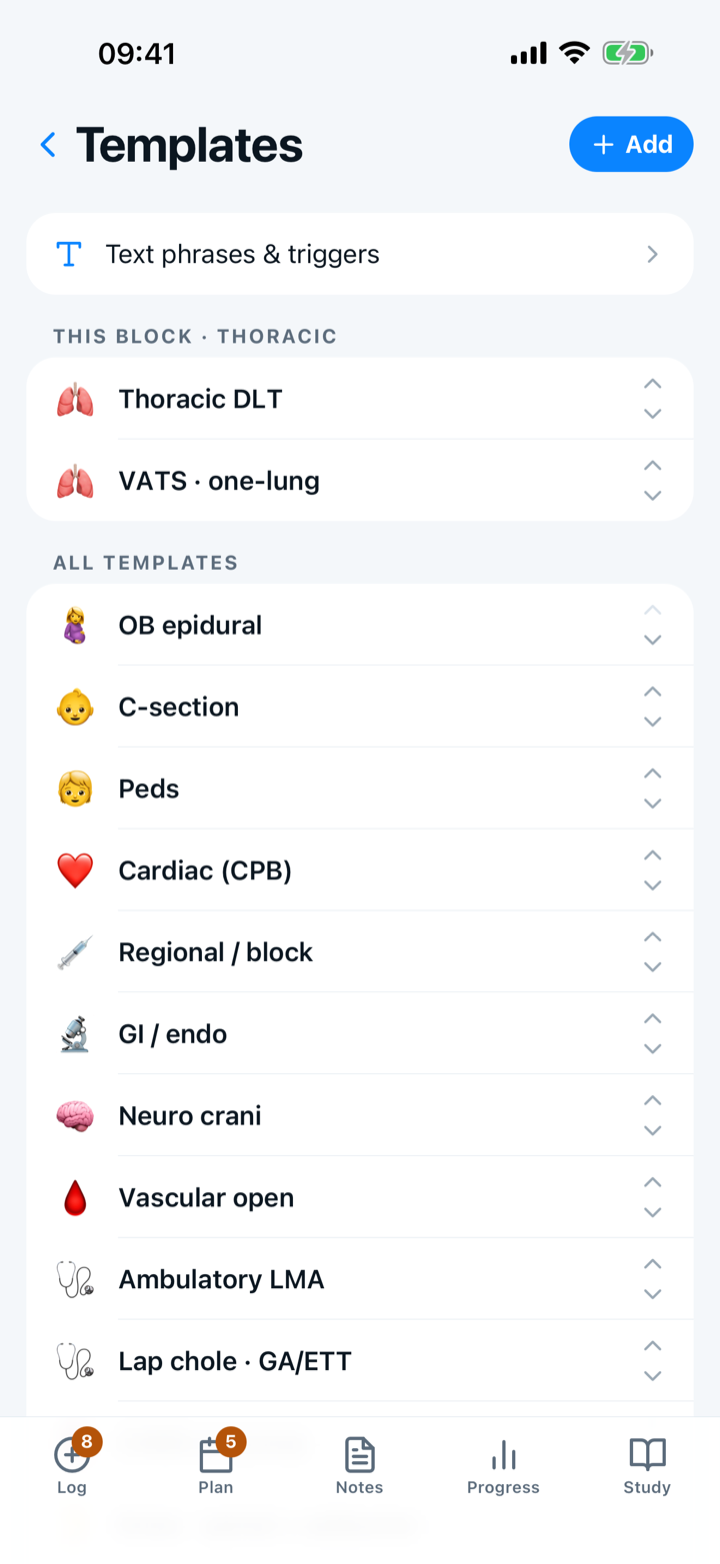
Settings → Case templates holds each template with its case shape, prep notes and the attending preferences for that case type. Make one from a case you are looking at, reorder or hide starter rows, and share a row with your program from its editor. The Phrases manager beside it holds dotphrases, with *** marking each blank.
By Christopher Cutler, MD, CA-1, anesthesiology
Two different kinds of shortcut. A template is a case you log again and again; a phrase is a paragraph you type again and again.
- 1
Open Settings → Case templates
Each template carries the answers for the case, your prep notes, and the attending preferences filed under that case type. Opening a template gives you the case and everything you have learned about doing it.
- 2
Make a template from a case
“Add a template” on the Log tab starts from what is in front of you, which is when you know what the template should contain.
- 3
Reorder, hide, or remove
The chevrons reorder the list. A starter template you do not use can be hidden rather than deleted — it dims, and swipes back to Unhide if you want it later.
- 4
Share a template with your program
A template’s own editor has a “Share with program” switch. It sends the case shape, the prep notes and the attending notes, with identifiers stripped before anything leaves the phone.
- 5
Write a dotphrase for anything you type twice
The Phrases manager sits beside your templates. A phrase has a trigger you type (“.pmhcards”), a label, and a body. Put *** wherever the wording changes and the cursor jumps from blank to blank as you fill it in.
The reusable wording goes in the body; the part that changes goes in a ***. Nothing patient-specific belongs in a saved phrase — a phrase is stored, a *** is not.

Keep reading
More in day to day
Tap the answers or use a template, and never lose a case.
Set up tomorrow's OR board the night before — then log each case in one tap.
Share a case template or an attending note with your program, and use the ones your co-residents shared.
Hand off an anesthetic plan to a co-resident, or plan the case together with a senior on two phones.